
December 12, 2025
.webp)

Mastering the csv file structure: A Practical Guide
Understand csv file structure with practical tips on headers, delimiters, and common errors to improve data reliability.
Career Development
minutes
Mastering the csv file structure: A Practical Guide
At its core, a CSV file is just a simple, plain-text way to organise data that looks like a table or spreadsheet. Think of it as the universal language for data tables. Rows act as individual records, while columns represent the different data categories. It uses a basic character, usually a comma, to separate each bit of information.
So, What Is a CSV File Structure, Really?
Imagine you’ve got a list of contacts in one app and you need to get it into a completely different one. Each app probably stores that information in its own unique, proprietary format. A CSV (which stands for Comma-Separated Values) file cuts through that complexity. It acts as a neutral translator, stripping away all the fancy formatting to leave behind just the raw data in a clean, grid-like structure that almost any piece of software can understand.
The beauty of a CSV file structure lies in its simplicity. Each line in the file is a single record—like one customer in your database or one product in your inventory. Within each line, commas act as little fences, separating every piece of information into its own distinct field or column. This elegant, no-frills approach is exactly what makes it so powerful.
The Power of Plain Text
Unlike a native file from Excel or Google Sheets, which is packed with formatting, formulas, and other hidden data, a CSV is just text. Nothing more. This gives it a few major advantages for anyone working with data:
- Universal Compatibility: From a basic text editor to a sophisticated database, almost any application can open and make sense of a CSV file.
- Lightweight and Efficient: With no extra formatting to weigh it down, a CSV file is incredibly compact. This makes it quick to send, share, and store.
- Human-Readable: You can pop open a CSV in any simple text editor and see the data structure immediately. This is a lifesaver for quick checks and troubleshooting problems.
Why Structure Is So Important
A CSV file is only as reliable as its structure is consistent. A single misplaced comma or an accidental line break can throw an entire import process into chaos, leading to jumbled-up data and frustrating errors. Getting to grips with the fundamental building blocks—headers, delimiters, and records—is your first step toward creating clean, reliable data files. Nailing these fundamentals is one of those essential practical skills for business that will save you countless hours and headaches down the track.
A well-organised CSV file is the key to data integrity. It’s what separates a seamless data transfer from a chaotic mess of mismatched columns and corrupted information.
This format is so dependable that it's become a cornerstone for data exchange, even at a national level. For example, Statistics New Zealand (Stats NZ) often provides critical datasets as CSV files. Whether it's economic figures or environmental data, the CSV file structure allows for efficient, machine-to-machine transfer with minimal fuss. Learning how Stats NZ uses CSV for data exchange really shows its real-world impact.
The Anatomy of a Well-Structured CSV File
To really get your head around a CSV file, you need to look past the spreadsheet view and break it down into its core parts. Think of it like a simple building: you’ve got a foundation, walls, and a roof. Each part has to be in the right place for the whole thing to stand up. For a CSV, those parts are things like headers, delimiters, records, and fields, and they all work together to create a solid, organised dataset.
This flowchart gives you a quick visual of how the basic bits of a CSV file fit together.
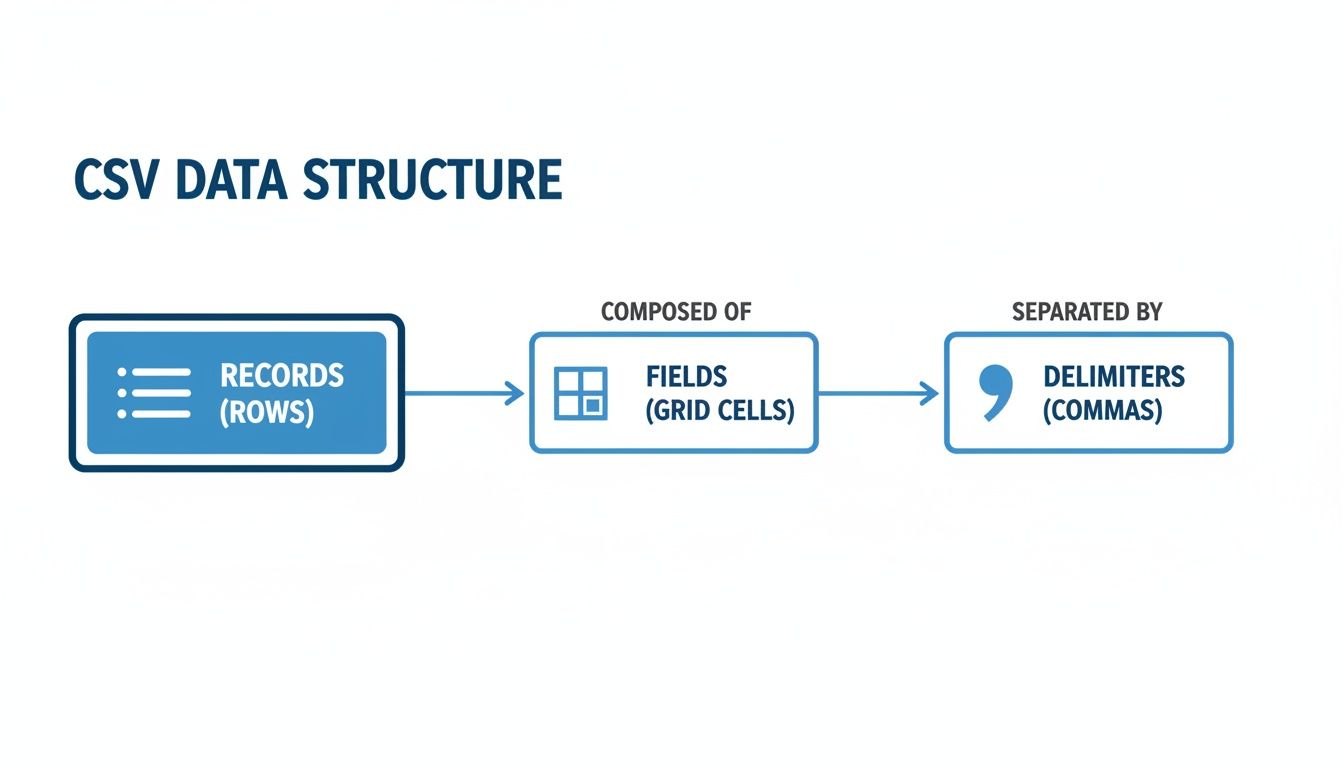
As you can see, individual data points (fields) are kept separate by delimiters, and these fields group together to form a complete entry (record). It’s this simple grid-like logic that makes the format so reliable.
Headers: The Blueprint for Your Data
The very first line in any good CSV file should always be the header row. This line is the blueprint for your entire dataset, giving each column a clear, human-friendly title. Without it, you’re just staring at a grid of data with no context.
A row of data like Tāne Mahuta,tane@example.co.nz,45 doesn't mean much on its own. But add a header row like FullName,EmailAddress,Age, and the information instantly clicks into place. This one line gives meaning to every single row that follows.
Delimiters: The Fences Between Your Fields
The most critical part of a CSV’s structure is the delimiter. This is the character that separates, or "delimits," one field of data from the next. The comma is the classic choice (it's in the name, after all), but it’s definitely not your only option.
Using different delimiters is a smart move when your data itself contains commas. Imagine trying to store a product description like "Wool Scarf, Blue, 100% Merino". If you use a comma to separate your columns, a program will likely get confused and split that single description into three different fields.
To get around this, you can pick another character:
- Semicolon (;): Common in parts of Europe where the comma is used as a decimal point in numbers.
- Tab (\t): A really popular choice that creates a "Tab-Separated Values" or TSV file. It’s great for avoiding any comma-related headaches.
- Pipe (|): Another distinct character that you’re unlikely to find lurking within your actual data.
The golden rule here is consistency. Whichever delimiter you choose, you have to stick with it for the entire file to maintain a clean and predictable csv file structure.
Records and Fields: The Building Blocks
If headers are the blueprint, then records and fields are the actual bricks and mortar. A record is just a single row of data—one complete entry. A field is an individual piece of information within that record.
At its heart, a CSV file is just a collection of records. Each record is made up of a bunch of fields, and those fields are neatly separated by a delimiter. This simple, repeating pattern is what gives the CSV its quiet power.
Quoting and Escaping: Handling Tricky Data
So, what happens when your data has to include a comma or even a line break? This is where quoting saves the day. By wrapping a field in double quotes ("), you're telling any software reading the file to treat everything inside those quotes as one single piece of information, even if it contains delimiters.
For example, to correctly store an address like "123 Kiwi Street, Auckland", you’d wrap it in quotes: ...,"123 Kiwi Street, Auckland",...
But what if your data contains a double quote itself, like in the product name 12" Tablet Screen? This is where you need escaping. The standard way to deal with this is to use two double quotes ("") to represent a single, literal quote inside an already quoted field. So, the data would end up looking like this: ...,"12"" Tablet Screen",...
Getting your head around quoting and escaping is vital for preventing your data from getting corrupted and making sure any system can read your file correctly.
Line Endings and Character Encoding: The Technical Details
Lastly, there are a couple of technical details that are crucial for making sure your file works everywhere. Line endings are invisible characters that signal the end of a row. Different operating systems (like Windows and macOS) use different characters, which can sometimes cause chaos when you move files between them.
Even more important is character encoding, which dictates how text characters are stored as bytes. The go-to standard these days is UTF-8. It can represent pretty much any character from any language, including the macrons used in te reo Māori (like in the word Pākehā). Using the wrong encoding can lead to garbled text (think weird symbols instead of letters), a common frustration when importing data.
Making sure your file is saved with UTF-8 encoding is a solid best practice, especially in a multicultural place like New Zealand, as it ensures maximum compatibility.
Bringing CSV Structure to Life with Real Examples
Theory is one thing, but seeing how the CSV file structure actually works in the wild is where it all clicks. Let's move beyond the rules about headers and delimiters and look at some practical, New Zealand-based scenarios to see how this humble format organises everyday information.
By walking through examples from local businesses, you'll see the direct link between the raw text in a .csv file and the neat, tidy spreadsheet it becomes in a program like Excel or Google Sheets.

These examples won't just cover the basics; they'll show you how to handle Kiwi nuances like our specific date and currency formats.
Example 1: A Queenstown Cafe Customer List
Imagine a bustling little cafe in Queenstown tracking its loyalty programme members. The data is pretty simple: the customer's name, their go-to coffee, and their points total. This is a perfect job for a CSV.
Here’s what the raw text inside the .csv file would look like:
"FullName","FavouriteCoffee","LoyaltyPoints","JoinDate"
"Sophie Bell","Flat White",78,"21/05/2023"
"Liam O'Connor","Long Black",45,"15/06/2023"
"Chloe, 'The Regular' Chen","Latte",112,"02/02/2022"
Pop that file into a spreadsheet app, and it transforms into a clean, easy-to-read table. Notice Chloe's entry? The double quotes around "Chloe, 'The Regular' Chen" are crucial. They tell the software to keep her nickname—comma and all—tucked into a single cell. That’s a classic example of quoting in action.
Example 2: A Canterbury Farm Inventory
Alright, let's step it up a bit. Think of an inventory list for a sheep and crop farm out in Canterbury. This dataset is a bit more complex, needing to track unique product codes, stock levels, and pricing.
The CSV data might be structured like this:
ProductID,ItemName,Category,StockLevel,UnitPrice
"LMB-001","Lambswool Bale","Wool",35,450.50
"GRN-004","Barley (per tonne)","Grain",120,375.00
"FRT-002","Fencing Wire (50m)","Farm Supplies",88,95.75
This example shows off a few key things. First, the ProductID follows a consistent format, which makes sorting and finding items a breeze. Second, the UnitPrice column handles decimal numbers perfectly without any special treatment. This kind of clean structure is absolutely essential for accurate stocktakes and bookkeeping.
The real power of a well-defined CSV structure is its predictability. Whether you have four columns or forty, the simple pattern of
header, record, delimiterensures that your data remains organised and machine-readable, no matter how much it grows.
Example 3: An Online Retailer Sales Export
Finally, let's look at a sales data export from a Kiwi online store selling photography prints. This data needs to capture all the transaction details—order numbers, customer locations, and sales figures, all with NZ-specific formatting.
Here’s what that CSV export could look like:
OrderID,CustomerCity,SaleAmount,OrderDate
90145,"Auckland","$149.95","11/10/2023"
90146,"Wellington","$85.00","11/10/2023"
90147,"Christchurch","$220.50","12/10/2023"
In this case, the SaleAmount field includes the dollar sign and is wrapped in quotes to make sure the currency symbol doesn't cause any hiccups. Even more importantly, the OrderDate uses the standard New Zealand DD/MM/YYYY format. Keeping this consistent is vital for accurate sales reporting and analysis. Each of these real-world examples proves just how effectively a simple text file can organise all sorts of business data.
Troubleshooting Common CSV Structure Errors
For a format that looks so simple on the surface, the CSV file structure can be surprisingly fragile. One tiny mistake—a misplaced comma or an odd character—is all it takes to cause frustrating import errors, scramble your data, and burn through your valuable time. This section is your field guide to spotting and fixing the most common issues you'll run into.
Think of a perfect CSV as a smooth, straight road for your data. Each of these common errors is like a sneaky pothole or a wrong turn that can send everything off course. Let's look at how to spot them and patch them up fast.

Mismatched Columns and Rogue Commas
This is, without a doubt, the most frequent CSV headache. You go to import a file, and suddenly your data is all over the place, shifted into the wrong columns. The culprit is almost always a rogue comma lurking where it shouldn’t be.
Picture a product description like "Durable, all-weather jacket". If that bit of text isn't properly wrapped in double quotes, any program reading the file will see the comma after "Durable" and assume it's the start of a new column. This single error throws off the entire row, and every single row after it.
To fix this, you need to play detective:
- Go to the Source: Open your CSV in a plain text editor (like Notepad on Windows or TextEdit on a Mac) to see the raw data, not the prettified spreadsheet view. The problem usually starts on the first row that looks jumbled.
- Enforce the Rules: The fix is simple: make sure any text field containing a comma is wrapped in double quotes (
"). This tells the software to treat everything inside those quotes as one single piece of information.
Gibberish Text and Encoding Problems
Ever opened a file and been greeted by a mess of strange symbols like †or � instead of proper letters? This garbled text—sometimes called "mojibake"—is a classic sign of an encoding mismatch.
Think of encoding as the rulebook a computer follows to turn digital bytes into readable characters. If the file was saved using one rulebook (like an older Windows format) but opened with another (like the modern standard, UTF-8), the translation gets scrambled. This is a particularly common issue in New Zealand when data includes macrons for te reo Māori words.
Thankfully, the solution is usually straightforward. You just need to re-save the file with the correct encoding. Most spreadsheet programs and text editors have a "Save As" option that lets you specify the encoding. Choosing UTF-8 is almost always the right move, as it offers the broadest compatibility.
Unescaped Characters Breaking the Structure
This issue is a close cousin of the rogue comma problem. It crops up when your data contains the very characters that define the CSV's structure—specifically, double quotes.
Let's say you have a field for product dimensions, like 15" Monitor. If that field is also wrapped in quotes for some reason (like ...,"15" Monitor",...), the program might see the quote mark after the 15 and mistakenly think it's the end of the field. Chaos ensues.
To handle a double quote inside a field that's already quoted, you have to "escape" it by doubling it up. The correct format looks like this:
...,"15"" Monitor",.... This tells the parser, "Hey, this quote is part of the data, not part of the structure."
Disappearing Leading Zeros
This one is a notorious headache for anyone in New Zealand working with postcodes, bank account numbers, or product codes that start with a zero (like 0800 numbers). You open a CSV in a program like Excel, and it "helpfully" tidies up your data by stripping away those leading zeros, turning 0432 into just 432.
This happens because spreadsheet software often tries to guess the data type and assumes any column full of digits must be a number for calculations. Since leading zeros have no mathematical value, they get dropped.
To stop this from happening, you have to explicitly tell the program to treat that column as text during the import process. Instead of just double-clicking the file, use the "Import Data" or "Import from Text/CSV" wizard. This gives you a crucial step where you can select the column and set its data type to Text, preserving your data exactly as it should be.
How to Create and Import CSV Files Correctly
Knowing how to fix a broken CSV is a handy skill, but building a clean one from the very start is even better. This guide will walk you through creating and importing CSV files using the tools you probably use every day, like Excel and Google Sheets. We'll start from scratch, focusing on the simple steps that make sure your CSV file structure is solid and dependable.
Mastering this isn't just about data entry—it’s about setting up a file that any system can read without tripping up. From there, we’ll look at the right way to import that data, ensuring every column lands exactly where it should.
Building a Clean CSV File From Scratch
At its heart, creating a CSV file is just about organising your information into a simple grid. The easiest place to start is in a familiar spreadsheet program where you can see the columns and rows clearly before you export anything.
Establish Clear Headers: Your first row is the most important one. Use it to create short, descriptive, and unique headers for each column (think
first_name,email_address,order_id). Try to avoid special characters or spaces; it just makes them more machine-friendly down the line.Enter Data Consistently: As you fill in the rows, make sure each piece of information lines up under the correct header. Consistency is key here—if you use a DD/MM/YYYY date format in one row, stick with it for all of them.
Handle Special Characters: If any of your data includes commas, like in an address field, be sure to wrap that entire cell's content in double quotes. For example, you’d type
"15 Tui Street, Nelson"directly into the cell.
Once your data is neatly organised, you're ready to export it into the universal CSV format.
Exporting Your Data to CSV Format
The final step in creating your file is saving it correctly. Both Excel and Google Sheets make this pretty straightforward, but there are a couple of critical settings to get right.
In Microsoft Excel, you'll use the "Save As" function. After you've named your file, click the dropdown menu for the file type and select CSV UTF-8 (Comma delimited) (*.csv). Choosing the UTF-8 option is vital, especially in New Zealand, as it ensures characters like the macrons in te reo Māori are preserved correctly.
Over in Google Sheets, the process is similar. Go to File > Download and select Comma Separated Values (.csv). Google Sheets defaults to UTF-8, which helps prevent those pesky encoding errors we talked about earlier.
Remember, when you save a file as a CSV, you are stripping away all formatting—no bold text, no colours, no formulas. You are left with pure, structured data, which is exactly the point.
Mastering the Import Process
Importing a CSV correctly is just as important as creating one. Just double-clicking a file to open it in Excel can cause all sorts of problems, like leading zeros vanishing from postcodes. Using the dedicated import wizard gives you full control.
In Excel, head to the Data tab and select From Text/CSV. This opens an import wizard that lets you:
- Confirm the delimiter (usually a comma).
- Specify the character encoding (select UTF-8 if you need to).
- Define data types for each column—this is the most crucial step. By selecting a column and setting its type to "Text," you can stop Excel from automatically removing leading zeros from postcodes or ID numbers.
In Google Sheets, go to File > Import and upload your file. The import dialogue will ask you to choose options for delimiter detection and whether to convert text to numbers and dates, giving you similar control. These skills are essential, and strengthening your foundational digital skills can make data handling tasks like this much more efficient.
A Glimpse Into Database Imports
For those ready for the next level, importing a CSV into a database follows a similar logic. The database needs to know how the columns in your file map to the fields in its table. For instance, the order_id column in your CSV will be directed into the order_id field in your sales table. A clean CSV file structure with clear headers makes this mapping process incredibly simple.
To really streamline your data handling and avoid manual errors, it’s worth looking into solutions for automating financial reports with CSV exports.
This very principle is used on a massive scale by the New Zealand Companies Office. They release bulk data exports each month, containing 18 separate CSV files with information on companies, shareholders, and directors. These files are all linked using the New Zealand Business Number (NZBN) as a key, showing how a well-organised CSV structure can maintain data relationships even across multiple files.
So, you've got the basics down. Now it's time to level up your game and start handling CSV files like a seasoned data pro. Adopting a few professional habits will make your files more robust, easier to share, and far less likely to cause headaches down the line. It's all about structuring your data for success and stopping errors before they even start.
At the core of professional CSV use is something called RFC 4180. Think of it as the official rulebook for the format. You don't need to memorise the entire technical document, but understanding its main principles—like always using double quotes for fields that contain commas—is a game-changer. It’s the universal standard that ensures maximum compatibility, preventing a simple file transfer from spiralling into a messy troubleshooting session.
Adopting Habits for Data Integrity
Consistency is everything when it comes to a reliable CSV file structure. Start by creating strict naming conventions for your headers. A simple, consistent format like lowercase_with_underscores makes your data predictable and a breeze for programs to work with. Whatever you do, avoid spaces and special characters like !, &, or % in your headers; they're notorious for causing import errors in databases.
It also pays to think about how your data relates across different files. Getting your head around concepts like an entity relationship diagram can help you structure your headers and files in a much more logical way.
A disciplined approach to naming conventions and data formatting is what separates amateur data files from professional, system-ready datasets. It's a small effort that pays massive dividends in reliability.
Handling Large-Scale Datasets
What happens when your CSV file grows from a few hundred rows to a few million? Performance suddenly becomes a big deal. Trying to open a massive file in Excel can be painfully slow, and sometimes, it just won't open at all.
For heavy-duty data integration, many organisations leverage advanced ETL tools like Ab Initio for high-volume data processing. A more hands-on strategy is to split the massive file into smaller, more manageable chunks.
This isn't just a niche trick; it's a common practice, even at the government level. Here in New Zealand, open data platforms like Stats NZ Infoshare lean heavily on the CSV format to share huge social and demographic datasets. For example, the incredibly detailed 2013 Census meshblock data is released as CSV files, making it accessible for researchers and analysts. You can explore these public datasets on the Stats NZ website.
For those with a bit of coding know-how, scripting languages like Python are a lifesaver. Libraries such as Pandas can process enormous CSVs line by line without needing to load the entire file into memory, opening the door to powerful and efficient automation.
Your Top CSV Questions, Answered
Once you get the hang of CSVs, a few specific questions almost always come up. They're the kind of details that trip people up in the real world, so let's clear the air and get you handling your data with complete confidence.
Can a CSV File Have Multiple Sheets?
If you've spent any time in Excel or Google Sheets, this is a perfectly natural question to ask. But the short answer is no. A CSV file is fundamentally a plain-text file representing a single, flat table of data.
Think of it this way: an Excel workbook is like a multi-page binder, where each tab is a separate sheet. A CSV, on the other hand, is just one of those pages, torn out and stored on its own. It simply doesn't have the structure to support multiple tabs or sheets.
What’s the Real Difference Between CSV and TSV?
The only technical difference is the character used to separate the data columns—the delimiter. A CSV (Comma-Separated Values) uses commas, while a TSV (Tab-Separated Values) uses tabs.
So why choose one over the other? It’s a practical decision. If your data includes fields with a lot of commas, like customer addresses or descriptive text, using a comma delimiter can get messy fast. In that scenario, switching to a TSV can save you a world of quoting headaches.
Choosing the right delimiter is all about practicality. If your text is full of commas, using a tab (TSV) or even a pipe symbol (|) can make your data structure far more robust and less prone to errors.
Why Does Character Encoding Matter So Much?
Character encoding is one of those behind-the-scenes details that you can ignore... until it goes horribly wrong. It’s essentially the dictionary your computer uses to turn the bytes in a file into the letters and symbols you see on screen.
If you create a file with one encoding and someone else opens it with another, your data can turn into a jumbled mess of strange symbols (you might have seen this as †or �). For modern data, especially here in New Zealand, UTF-8 is the gold standard. It’s designed to handle characters from virtually every language, including the macrons used in te reo Māori, ensuring your data stays clean and accurate no matter who opens it.
Ready to build the skills that matter for your career or business in New Zealand? Prac Skills offers practical, self-paced online courses designed for Kiwis. Start learning today.
