
February 2, 2026
.webp)

Finding Good Laptops for Students in NZ A Practical Guide
Searching for good laptops for students? This NZ guide simplifies specs, budgets, and top choices for university, creative work, and professional development.
Practical Skills
minutes
Picking the right laptop for your studies often feels like a balancing act between portability, a battery that lasts all day, and enough grunt to handle your coursework. For most Kiwi students, standout choices are often lightweight models like the MacBook Air, the versatile Dell XPS 13, or a reliable workhorse from the Lenovo ThinkPad series. These are all well-known for getting the job done without any fuss.
Finding Your Perfect Study Companion

Choosing a laptop for your course can feel pretty overwhelming. You’re hit with a wall of technical jargon and what seems like a million different options. The trick is to stop focusing on brand names and start thinking about what you’ll actually be doing with it.
Think of your laptop as more than just a piece of tech – it's your main tool for learning, creating, and maybe even launching a side hustle. This guide is here to give you a clear starting point, helping you match a device to your specific field of study right here in New Zealand. Whether you’re learning to code, studying animal care, or getting into agriculture, the right machine will make everything a whole lot smoother.
Core Features That Matter Most
Before we get lost in specs, let’s nail down the fundamentals. These are the things that will make or break your day-to-day student life, determining whether your laptop is a trusty sidekick or a frustrating deadweight.
For any student, the non-negotiables are:
- All-Day Battery Life: You need a machine that can get you through lectures, library sessions, and late-night study groups without sending you on a constant hunt for a power point.
- Lightweight and Portable Design: Lugging a heavy, chunky laptop across campus or on the bus gets old, fast. A lighter device gives you more freedom and saves your back.
- Sufficient Processing Power: Your laptop has to keep up with you. Whether that’s writing essays, editing photos, or crunching farm data, it needs to handle your specific tasks without slowing to a crawl.
These three elements are the foundation of a great student experience. Get them right, and your tech will support your learning instead of getting in the way.
Why Your Study Area Dictates Your Device
The single most important factor in your decision is what you plan to study. A photography student has wildly different needs from someone managing livestock records on a rural placement. In New Zealand's diverse learning landscape, students increasingly need laptops built for their specific environment.
According to the 2025 Ultimate Laptop Buying Guide from Tech On Wheels, Kiwi students are prioritising machines under 1.5kg that deliver at least 8 hours of real-world battery life. This sweet spot lets them juggle multiple browser tabs, word processing, and online lectures without needing to charge up constantly—an absolute must for campus life. You can read more in their complete student laptop breakdown.
This guide will demystify the specs and help you pinpoint exactly what you need. By understanding the basics, you can confidently choose a good laptop for students that will serve you well through your studies and beyond.
Quick Laptop Checklist For NZ Students
To make things easier, we've put together a quick summary table. Use this as a starting point to match your study needs with the right kind of machine.
This checklist isn't exhaustive, but it should give you a solid idea of where to begin your search. The key is to think about your most demanding tasks and choose a laptop that can handle them without breaking a sweat.
Matching Your Laptop to Your Field of Study
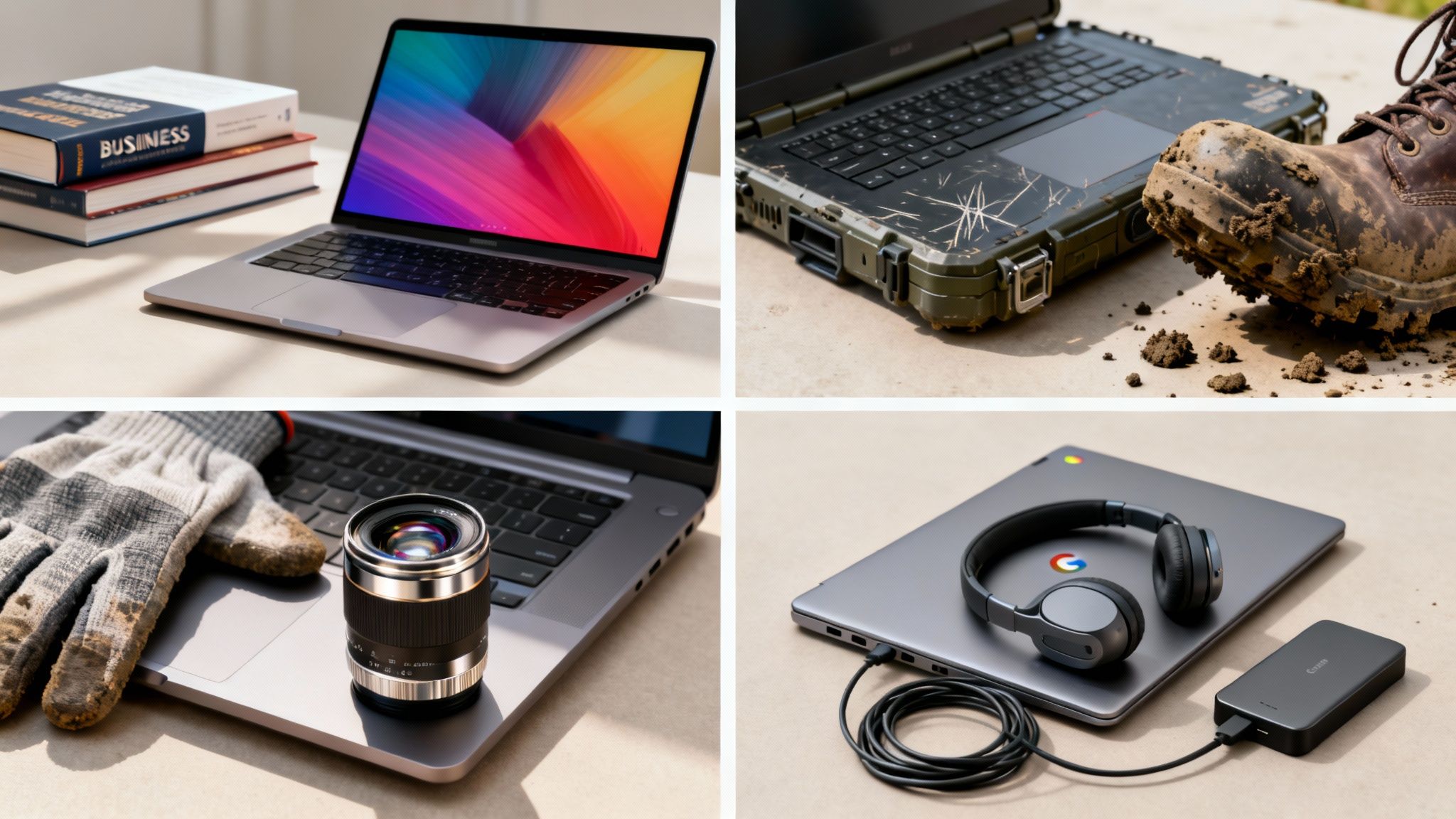
When it comes to student laptops, there's no such thing as a one-size-fits-all solution. The perfect machine for an arts student hammering out essays is worlds apart from what an aspiring photographer or a farm management trainee really needs. Finding a genuinely good laptop means first figuring out what kind of student you are.
This involves looking past the brand names and flashy marketing to focus on the real-world tasks you'll be doing day in and day out. By matching the tech to your field of study, you invest in a tool that actually helps you succeed, rather than one you just have to put up with. Let's break down four common student profiles in New Zealand to see how their needs translate into specific hardware.
The University All-Rounder
This is your classic uni student, tackling anything from arts and science to business degrees. The daily grind revolves around research, writing, building presentations, and collaborating online. Think of this laptop as your reliable workhorse.
You'll live in your web browser, often with dozens of tabs open, while jumping between Microsoft Word, Google Docs, and PowerPoint. Your performance needs are moderate, but the real non-negotiable is reliability.
- What you need: A well-balanced machine with a comfortable keyboard for those long nights, a crisp screen that's easy on the eyes, and enough grunt to multitask without lagging.
- Key specs: Look for an Intel Core i5 or AMD Ryzen 5 processor, 8GB of RAM, and a 256GB Solid State Drive (SSD) as a minimum for snappy boot times.
- Don't overspend on: A high-end dedicated graphics card. The graphics power built into modern processors is more than enough for streaming lectures and running presentation software.
The Creative Professional in Training
If your studies are in photography, graphic design, or video production, your laptop isn't just a tool—it's your digital canvas. This is where processing power and screen quality become make-or-break features. You'll be pushing demanding software like Adobe Photoshop, Lightroom, and Premiere Pro to their limits.
These applications chew through system resources, relying heavily on RAM to handle massive files and a powerful processor to render your edits. Most importantly, your screen has to be colour-accurate. If it isn't, the work you see on your device won't look the same in print or on other screens.
A laptop for a creative is an investment in your craft. Make sure you prioritise a screen with 100% sRGB colour gamut coverage and at least 16GB of RAM. Anything less, and you'll be fighting frustrating slowdowns during intensive editing.
This is one area where trying to save a few hundred dollars on specs will directly hurt your workflow and the final quality of your work. You'll also need plenty of storage for hefty project files. To get a better sense of the gear that elevates creative work, have a look at our guide on finding the best camera for photography.
The Field Specialist on the Go
For students in agriculture, farming, or environmental science, the "classroom" is often a paddock or a remote field site. Whether you're recording livestock data or analysing soil samples, your laptop has to be tough, practical, and able to work for hours without Wi-Fi.
Durability is everything here. Look for laptops with spill-resistant keyboards and a solid chassis, sometimes marketed as "rugged" or "semi-rugged." A bright, anti-glare screen is also crucial for being able to actually see what you're doing in direct sunlight.
- Essential features: A long-lasting battery is a must, along with a durable build and solid offline capabilities. A 2-in-1 convertible design can be a game-changer for taking notes or punching in data while standing up.
- Connectivity: A good selection of ports for connecting sensors, drives, and other gear is far more important than a sleek, minimalist design.
The Side Hustler and Skills Builder
Plenty of Kiwis are upskilling to launch a side business or take a current one to the next level. Whether you're studying digital marketing, animal care, or web design through a platform like Prac Skills NZ, your laptop is your business HQ. Your needs will likely be a mix of the other profiles, depending on what your venture is.
An animal care student starting a pet-sitting business needs a solid, reliable machine for bookings and marketing. In contrast, someone learning photography will have needs much closer to the creative professional. The key here is versatility.
This highlights how a single learning platform can cater to diverse career paths, each with its own unique software and hardware demands. The move toward online, skills-based learning is gaining serious momentum in New Zealand, with recent tech analyses showing that over 90% of learners now need a personal laptop. Mid-tier options like the HP Pavilion series are often a great choice, offering a good blend of performance and port selection for learners doing everything from managing farm data to editing photos.
Decoding Technical Specs Without the Jargon
Stepping into a tech store or browsing online for a laptop can feel like trying to read another language. You’re hit with a barrage of acronyms like CPU, RAM, and SSD. This section is your personal translator, breaking down these core components into simple, practical terms so you can find a good laptop for students without needing a computer science degree.
Getting your head around what these parts actually do is the key to investing your money wisely. It ensures you get the performance you need for your studies without paying extra for power you'll never use.
The CPU: The Laptop's Brain
The Central Processing Unit, or CPU, is the engine of your laptop. It handles all the instructions and calculations, from opening a program to running complex software. Think of it as the laptop's brain—the faster the brain, the quicker it can think and get things done.
For students, the main names you'll see are Intel (with their Core i3, i5, and i7 series) and AMD (with their Ryzen 3, 5, and 7 series).
- Intel Core i3 / AMD Ryzen 3: These are great for basic tasks like writing essays, browsing the web, and streaming lectures. They're ideal for students on a tight budget with pretty straightforward needs.
- Intel Core i5 / AMD Ryzen 5: This is the sweet spot for most students. These processors provide excellent all-around performance, easily handling multitasking, spreadsheets, and even some light photo editing without breaking a sweat.
- Intel Core i7 / AMD Ryzen 7: These are the high-performance brains built for seriously demanding work. If your course involves video editing, 3D modelling, or running complex data simulations, this is the level of power you should be aiming for.
A mid-range processor like an Intel Core i5 or AMD Ryzen 5 is a fantastic choice for the majority of Kiwi students, offering smooth, reliable performance for years to come.
RAM: The Multitasking Workspace
Random Access Memory, or RAM, is your laptop's short-term memory. It's like the amount of desk space you have to work with. If you only have a small desk, you can only work on one or two things at a time before it gets cluttered and you start slowing down.
With more RAM (a bigger desk), you can spread out multiple projects—your essay, a dozen research tabs, your music, and a lecture video—all at once without everything grinding to a halt. Every single program and browser tab you open uses a piece of your RAM.
For a smooth student experience, 8GB of RAM should be your absolute minimum. This allows you to multitask efficiently without wanting to throw your laptop out the window. If your studies are in a creative or technical field, investing in 16GB of RAM is a very smart move that will save you from future headaches and slowdowns.
Storage: The Filing Cabinet
Storage is where all your files, from essays and photos to software and the operating system itself, are kept permanently. Think of it as your laptop's filing cabinet. There are two main types you'll run into.
The single most important thing to look for is a Solid State Drive (SSD). An SSD is like a modern digital filing cabinet with no moving parts, allowing it to find and open your files almost instantly. A laptop with an SSD will boot up in seconds—a total lifesaver when you're rushing to join an online lecture.
The alternative is a Hard Disk Drive (HDD), which is older, slower technology. While you might see more storage space for less money with an HDD, the speed difference is absolutely enormous. Always, always prioritise a laptop with an SSD, even if it has a bit less capacity. For most students, a 256GB SSD is a decent starting point, but 512GB offers much more comfortable breathing room for software and projects.
Student Laptop Spec Decoder
Still feeling a bit lost in the lingo? No worries. This quick table translates the techy terms into real-world student benefits, so you know exactly what you're looking for.
Think of these three core components—CPU, RAM, and SSD—as the foundation of your laptop's performance. Getting the right balance is the secret to a great student machine that will see you through to graduation.
Choosing Your Operating System and Software
Once you've got a handle on the hardware, the next big piece of the puzzle is the operating system, or OS. Think of the OS as the personality of your laptop – it’s the core software that manages everything, from the files you save to the apps you run. It dictates how you interact with your device every single day.
For students here in NZ, the choice really boils down to three main contenders: Windows, macOS, and ChromeOS. Each one has a completely different feel, and the right one for you hinges on your budget, what your course demands, and frankly, what you prefer using. Nailing this choice is a huge step towards finding the perfect student laptop.
This decision is more than just personal preference; it determines what software you can run and how well your laptop plays with your other gadgets. Let's break down the pros and cons of each from a Kiwi student's perspective.
Windows: The Versatile All-Rounder
Windows is everywhere, and that’s its biggest advantage. It runs on a massive range of laptops from just about every brand you can think of. This means you can find a Windows machine at any price, from seriously budget-friendly options to high-performance rigs for demanding courses.
Because it's so common, software compatibility is rarely an issue. Pretty much any program you could ever need for your studies, whether it's the standard office suite or some super-specific engineering software, will run on Windows.
- Best for: Students needing maximum flexibility, the widest possible software support, and a huge choice of laptops.
- Key Advantage: Unbeatable compatibility and heaps of affordable options.
- Keep in mind: The user experience can feel a bit different depending on which brand of laptop you buy.
macOS: The Polished Creative Powerhouse
You'll only find macOS on Apple's MacBooks, and it's well-known for its clean, intuitive design and serious creative muscle. If you're studying anything like graphic design, video editing, or music production, you'll find that the industry-standard apps are often built to run best on a Mac.
The Apple ecosystem is another massive drawcard. If you already have an iPhone or iPad, a MacBook syncs up with them seamlessly. Your files, messages, and photos are just… there. This slick experience does come with a premium price tag, but for many, the smooth workflow is totally worth it.
- Best for: Creative students, anyone already using Apple products, and those who prioritise a simple, secure experience.
- Key Advantage: A beautiful, user-friendly interface and top-notch performance for creative work.
- Keep in mind: MacBooks cost more and you have far fewer options for customising the hardware.
ChromeOS: The Cloud-First Champion
ChromeOS is Google’s lightweight, web-first operating system. The laptops that run it, called Chromebooks, are usually very affordable and built for one thing: speed and simplicity. They boot up in seconds and are designed to do almost everything online.
These devices are fantastic for students whose work happens mostly in a web browser – think writing essays in Google Docs, using online learning portals, and doing research. Their biggest limitation, though, is that you can’t install traditional desktop software on them.
Before you even think about buying a Chromebook, you absolutely must check that every single piece of software your course requires is available online or as an Android app. If you need specific offline programs, a Chromebook just won't cut it.
Essential Software for Every Student
No matter which OS you pick, there's a core set of software you’ll need to get through your studies. Most educational providers will give you access to a productivity suite, but it helps to know what’s out there.
- Productivity Suites: Microsoft 365 (Word, Excel, PowerPoint) and Google Workspace (Docs, Sheets, Slides) are the big two. Check if your provider gives you a free subscription – many do!
- Note-Taking Apps: Tools like OneNote, Evernote, or Notion can help you organise lecture notes and research way better than a standard Word doc ever could.
- Security Tools: A good antivirus program is a must, especially on Windows. You don’t want to lose a crucial assignment to malware.
- Cloud Storage: Services like Google Drive, OneDrive, or Dropbox are lifesavers. They back up your important work automatically and let you access it from any device.
Getting comfortable with these tools early on will make a huge difference. To get a head start, you can explore a range of courses focused on essential digital skills that will set you up for success in any field.
Prioritising Portability and All-Day Battery Life

Technical specs are only half the battle when you’re hunting for a good student laptop. The other half is all about the physical design – how it actually feels to carry around and use every single day. Let's be real, a student laptop is a constant companion. It gets carted between lecture halls, the library, your favourite cafe, and home. It’s certainly not meant to be a heavy anchor chained to a desk.
This is where portability really comes into play. For students, true portability is a delicate dance between a lightweight design that won’t break your back and a screen that’s big enough to stare at for hours without squinting. A machine that’s easy to haul around is one you'll actually want to take with you, letting you study wherever you feel most productive.
Finding the Right Balance of Size and Weight
Laptops are usually grouped by their screen size, which has a direct knock-on effect on their total weight and footprint. A bigger screen is fantastic for juggling multiple tasks, but it always adds extra bulk.
- 13 to 14-inch Laptops: This is the sweet spot for most students. It’s the perfect compromise, offering enough screen real estate to work comfortably without weighing you down. Laptops in this range often weigh under 1.5kg, making them easy to chuck in a backpack and forget about until you need them.
- 15-inch Laptops: These give you a much more expansive screen, which is a godsend for creative work or having heaps of windows open side-by-side. The trade-off? They are noticeably heavier and bulkier, so you’ve got to be sure that extra screen space is worth the extra weight you'll be lugging around.
- Laptops Under 13 inches: While these are the ultimate in portability, the smaller screens can feel pretty cramped during long writing or research sessions. They’re best as a secondary device or for students who value mobility above absolutely everything else.
While you’re thinking about portability, don’t forget about the gear that supports it. A few useful laptop accessories like stands and carry bags can make your mobile study setup far more ergonomic and organised. A lightweight, durable bag is just as important as the laptop itself.
The Truth About All-Day Battery Life
Laptop manufacturers love to slap impressive battery life figures on the box. The catch? Those numbers usually come from ideal, low-intensity lab tests. Real-world student use—with a dozen browser tabs open, music streaming in the background, and assignments on the go—chews through a battery much, much faster.
Don’t just take the manufacturer’s claim at face value. A much smarter move is to look for independent reviews that test battery life under realistic conditions, like continuous web browsing and video playback. You should be aiming for a laptop that reviewers confirm can last at least 8 to 10 hours on a single charge.
Getting that level of endurance means you can confidently leave your charger at home. You'll know your machine will power through a full day of classes and library sessions without sending you on a frantic hunt for a free power point.
Having a device that can truly last all day is becoming vital, especially as online learning and flexible work become the norm. Knowing how to set up an effective study space anywhere is a crucial skill, and a reliable, long-lasting laptop is the heart of that. Our guide on thriving remotely and turbocharging your career from home has more tips on setting yourself up for success beyond the traditional classroom.
Finally, think about build quality. A student laptop is going to take a few knocks and bumps – it’s inevitable. A machine with a solid aluminium or magnesium-alloy body will hold up far better than one made of flimsy plastic, making it a much smarter long-term investment for the demands of student life.
Where to Buy Your Laptop in New Zealand

Alright, you've done the hard yards. You know the specs you need and the software you’ll be firing up every day. Now for the exciting bit: actually buying the thing. Here in New Zealand, we're spoilt for choice, from massive electronics stores and specialist online shops to some really smart second-hand options.
Getting your head around where to look and what your rights are is the final piece of the puzzle. It’s what ensures you walk away with a fair price on a machine that will be a crucial investment in your studies and future career.
Major Retailers and Online Stores
For most people, the big-name retailers are the natural first stop. It makes sense – stores like PB Tech, Noel Leeming, and Harvey Norman have a massive range of laptops covering every possible budget. The best part is you can get hands-on and see how different models feel before you commit.
These big stores are always running sales, so timing your purchase can save you a bundle. Keep an eye out for the back-to-school deals that pop up in January and February, as well as the usual mid-year and Black Friday sales events. It always pays to compare their prices with online-only retailers too.
Exploring Refurbished and Ex-Lease Options
Don't sleep on the idea of a high-quality refurbished or ex-lease laptop. These are often seriously robust, professional-grade machines that companies have leased for a few years. They've been professionally wiped, tested, and prepped for a second life, and you can often score a much more powerful and durable laptop for your money this way.
When you're looking at refurbished gear, hunt down reputable sellers who back their products with a solid warranty. A good warranty is a clear sign they trust the quality of their machines, giving you that extra peace of mind.
To make that new student laptop even more affordable, figuring out where to sell your old laptop for the best price can be a game-changer. Flipping your old device can give you a nice little cash injection towards the new one, putting even better models within reach.
Understanding Your Rights and Warranty
When you buy a laptop here in New Zealand, you’ve got the Consumer Guarantees Act (CGA) on your side. This piece of legislation is your safety net, requiring that anything you buy is of acceptable quality and lasts for a reasonable amount of time. Crucially, this protection often goes well beyond the standard one-year warranty from the manufacturer.
What this means in practice is that if your laptop gives up the ghost because of a manufacturing fault—even after the official warranty is up—you might still have a right to a repair, a replacement, or a refund. Knowing your rights under the CGA gives you a whole lot more confidence when you're making a big purchase.
At the end of the day, picking the right laptop is about finding a tool that will truly help you grow, both personally and professionally. Whether you're upskilling for a side hustle or diving deep into a new career path, the right device is an investment in your own success.
Common Questions About Student Laptops
Choosing a new laptop always brings up a bunch of questions. So, let's tackle some of the most common queries we see from Kiwi students to help clear up any last-minute doubts before you pull the trigger.
Is 8GB of RAM Enough For a Student Laptop?
For the vast majority of students, 8GB of RAM is the perfect sweet spot. It gives you more than enough grunt to handle the everyday stuff—writing essays, juggling a dozen research tabs, and streaming online lectures—without any frustrating slowdowns.
However, if your course involves heavy-duty software for things like graphic design, video editing, or complex data modelling, investing in 16GB is a smart move. That extra headroom will keep everything running smoothly when you're deep in a project and can't afford any lag.
Should I Get a Laptop With a Touchscreen?
A touchscreen or a 2-in-1 convertible can be an amazing tool, especially if you’re the type who loves taking handwritten digital notes or sketching out diagrams. For students in creative or science-focused fields, that level of interactivity for annotating PDFs or visualising concepts can be a real game-changer.
That said, if your studies are mostly text-based and you live on your keyboard, a traditional "clamshell" laptop will do the job perfectly well. You'll often find you can get better performance specs for your money by skipping the touchscreen.
Your laptop is one of the most critical tools for your studies. Always look for at least a one-year manufacturer's warranty, and don't forget that New Zealand's Consumer Guarantees Act gives you powerful protections that often extend well beyond that period. It's great peace of mind for your investment.
Can I Use a Chromebook for My Studies?
A Chromebook can be a fantastic, budget-friendly choice, but only if your work is almost entirely online. They absolutely fly when it comes to using web-based tools, Google Docs, and general browsing.
The big catch is their inability to install traditional desktop software. Before you even think about buying one, you must confirm that every single program your course requires is available either online or as an app in the Chrome Web Store.
Ready to build the practical skills for your career or side hustle? Prac Skills NZ offers a range of online, career-focused courses designed for busy Kiwis. Explore our course bundles and start learning today at https://www.pracskills.co.nz.